
Ask your question and get a summary of the document by referencing this page and the AI provider of your choice
Version History
- "Move Live Sync section to its own page (live-sync.md), keep a short intro + link here"v9.0.07/8/2026
- "Add Self-Hosting section: Docker Compose bootstrap, service inventory, SDK configuration, optional features, and upgrade notes"v9.0.06/30/2026
- "Add @intlayer/api SDK (createIntlayerCMS) section for programmatic CMS access"v9.0.06/29/2026
- "Add live sync documentation"v6.0.19/22/2025
- "Replace `hotReload` field by `liveSync`"v6.0.09/4/2025
- "Init history"v5.5.106/29/2025
If you have an idea for improving this documentation, please feel free to contribute by submitting a pull request on GitHub.
GitHub link to the documentationCopy doc Markdown to clipboard
Intlayer Content Management System (CMS) Documentation
The Intlayer CMS is an Application that allows you to externalize your content of an Intlayer project.
For that, Intlayer introduce the concept of 'distant dictionaries'.
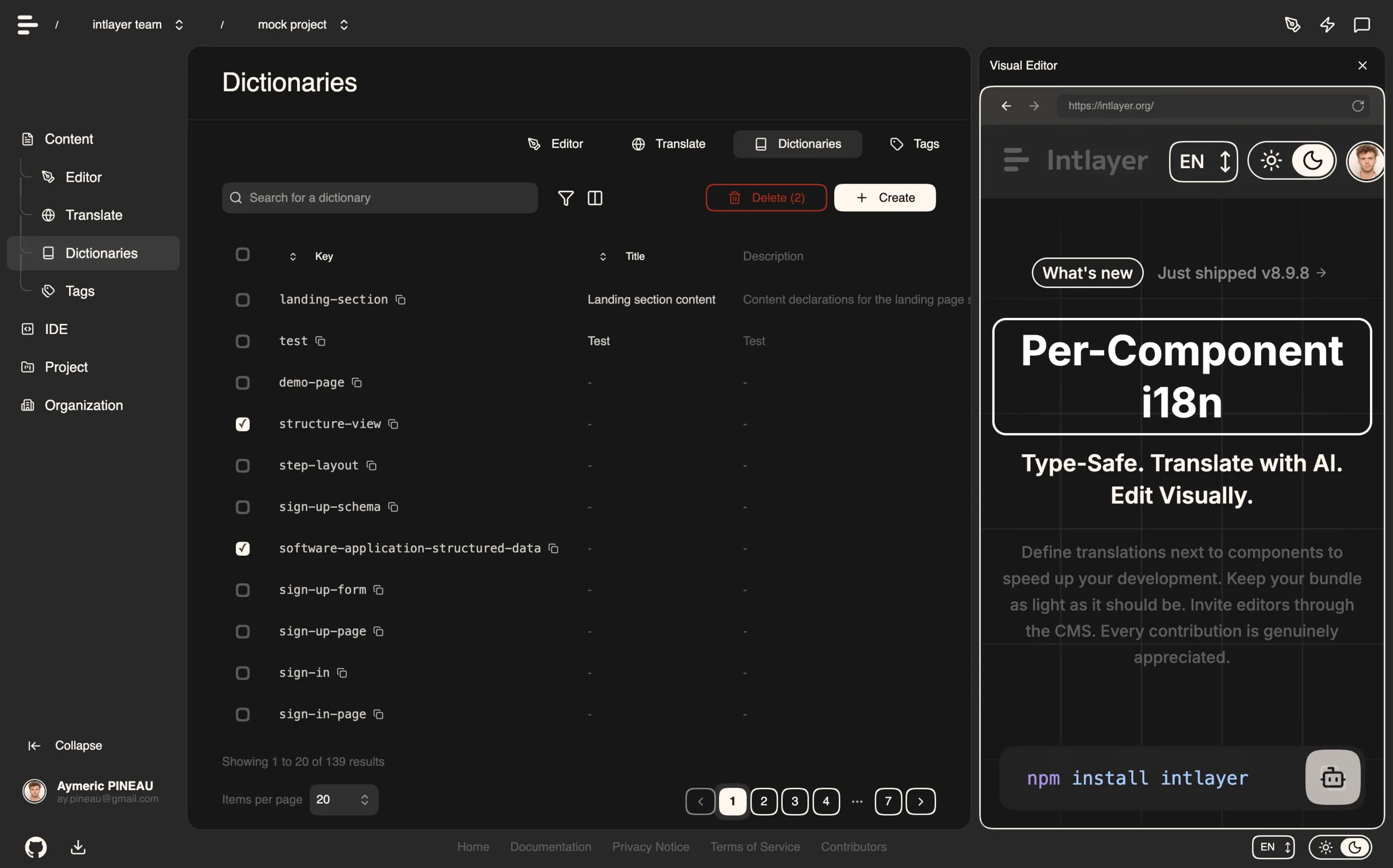
Table of Contents
Understanding distant dictionaries
Intlayer make a difference between 'local' and 'remote' dictionaries.
A 'local' dictionary is a dictionary that is declared in your Intlayer project. Such as the declaration file of a button, or your navigation bar. Externalizing your content do not make sense in this case because this content is not supposed to change often.
A 'remote' dictionary is a dictionary that is managed through the Intlayer CMS. It could be useful to allow your team to manage your content in direct on your website, and also aims to use A/B testing features and SEO automatic optimization.
Visual editor vs CMS
The Intlayer Visual editor is a tool that allows you to manage your content in a visual editor for local dictionaries. Once a change is made, the content will be replaced in the code-base. That means that the application will be rebuilt and the page will be reloaded to display the new content.
In contrast, the Intlayer CMS is a tool that allows you to manage your content in a visual editor for distant dictionaries. Once a change is made, the content will not impact your code-base. And the website will automatically display the changed content.
Integrating
For more details on how to install the package, see the relevant section below:
Integrating with Next.js
For integration with Next.js, refer to the setup guide.
Integrating with Create React App
For integration with Create React App, refer to the setup guide.
Integrating with Vite + React
For integration with Vite + React, refer to the setup guide.
Configuration
Run the following command to login to the Intlayer CMS:
Copy the code to the clipboard
This will open your default browser to complete the authentication process and receive the necessary credentials (Client ID and Client Secret) to use Intlayer services.
In your Intlayer configuration file, you can customize the CMS settings:
Copy the code to the clipboard
import type { IntlayerConfig } from "intlayer";

const config: IntlayerConfig = {
  // ... other configuration settings
  editor: {
    /**
     * Required
     *
     * The URL of the application.
     * This is the URL targeted by the visual editor.
     */
    applicationURL: process.env.INTLAYER_APPLICATION_URL,

    /**
     * Required
     *
     * Client ID and client secret are required to enable the editor.
     * They allow the identify the user who is editing the content.
     * They can be obtained by creating a new client in the Intlayer Dashboard - Projects (https://app.intlayer.org/projects).
     * clientId: process.env.INTLAYER_CLIENT_ID,
     * clientSecret: process.env.INTLAYER_CLIENT_SECRET,
     */
    clientId: process.env.INTLAYER_CLIENT_ID,
    clientSecret: process.env.INTLAYER_CLIENT_SECRET,

    /**
     * Optional
     *
     * In the case you are self-hosting the Intlayer CMS, you can set the URL of the CMS.
     *
     * The URL of the Intlayer CMS.
     * By default, it is set to https://intlayer.org
     */
    cmsURL: process.env.INTLAYER_CMS_URL,

    /**
     * Optional
     *
     * In the case you are self-hosting the Intlayer CMS, you can set the URL of the backend.
     *
     * The URL of the Intlayer CMS.
     * By default, it is set to https://back.intlayer.org
     */
    backendURL: process.env.INTLAYER_BACKEND_URL,
  },
};

export default config;
If you don't have a client ID and client secret, you can obtain them by creating a new client in the Intlayer Dashboard - Projects.
To see all available parameters, refer to the configuration documentation.
Using the CMS
Push your configuration
To configure the Intlayer CMS, you can use the intlayer CLI commands.
Copy the code to the clipboard
If you use environment variables in yourintlayer.config.tsconfiguration file, you can specify the desired environment using the--envargument:
Copy the code to the clipboard
This command uploads your configuration to the Intlayer CMS.
Push a dictionary
To transform your locale dictionaries in a distant dictionary, you can use the intlayer CLI commands.
Copy the code to the clipboard
If you use environment variables in yourintlayer.config.tsconfiguration file, you can specify the desired environment using the--envargument:
Copy the code to the clipboard
This command uploads your initial content dictionaries, making them available for asynchronous fetching and editing through the Intlayer platform.
Edit the dictionary
Then you will be able to see and manage your dictionary in the Intlayer CMS.
Programmatic access with the @intlayer/api SDK
Beyond the CLI and the visual editor, Intlayer ships a typed SDK in the @intlayer/api package. It lets you treat the CMS as a headless content database: you can fetch projects, fetch dictionaries, and push or update them directly from your own application, scripts, or CI pipeline.
The SDK handles authentication for you. As long as your clientId and clientSecret are available (in your Intlayer configuration or environment), it obtains and refreshes an OAuth2 access token automatically and signs every request.
Installation
Copy the code to the clipboard
How it works: authenticator + endpoints
The SDK is split into two separate imports on purpose, to keep your bundle small:
createIntlayerCMS: creates a lightweight authenticator. It only carries the credentials and the managed access token; it knows nothing about any specific domain.dictionaryEndpoint,projectEndpoint, …, per-domain endpoint binders, each imported from its own subpath (@intlayer/api/dictionary,@intlayer/api/project, …). You pass the authenticator to the endpoint you need.
Because each endpoint is imported separately, your bundle includes only the domains you actually use, importing dictionaryEndpoint never pulls in the project, AI, or any other domain client.
Copy the code to the clipboard
WARNING The CMS credentials (clientId/clientSecret) grant write access to your content. Only ever create the authenticator on the server side (server actions, route handlers, scripts, CI). Never import it into client-side code or expose your credentials to the browser.
If you prefer not to rely on the build-time configuration, pass the credentials explicitly:
Copy the code to the clipboard
Get your credentials by creating a new access key in the Intlayer Dashboard - Projects.
Fetch projects
Copy the code to the clipboard
Fetch dictionaries
Copy the code to the clipboard
Push and update dictionaries
Use the CMS as a database to write content back:
Copy the code to the clipboard
Tip: reuse the bound endpoint to avoid repeating yourself:
typescriptCopy codeCopy the code to the clipboard
Extracting a single method
Every endpoint method is already authenticated and standalone (it carries its own token handling), so you can extract one and pass it around, for example to inject it as a dependency:
Copy the code to the clipboard
Live sync
Live Sync lets your app reflect CMS content changes at runtime, no rebuild or redeploy required. When enabled, updates are streamed to a Live Sync server that refreshes the dictionaries your application reads.
For the full setup guide (configuration, starting the Live Sync server, the local development workflow, and constraints), see the Live Sync documentation.
Self-Hosting
Intlayer can run entirely on your own infrastructure. A one-liner bootstraps the full stack (dashboard, API, database, object storage, and email) with Docker Compose:
Copy the code to the clipboard
For the complete setup guide, environment variable reference, upgrade instructions, and backup/restore procedures, see the Self-Hosting Guide.
Debug
If you encounter any issues with the CMS, check the following:
The application is running.
The
editorconfiguration are correctly set in your Intlayer configuration file.- Required fields:
- The application URL should match the one you set in the editor configuration (
applicationURL). - The CMS URL
- The application URL should match the one you set in the editor configuration (
- Required fields:
Ensure that the project configuration was pushed to the Intlayer CMS.
The visual editor use an iframe to display your website. Ensure that the Content Security Policy (CSP) of your website allows the CMS url as
frame-ancestors('https://app.intlayer.org' by default). Check the editor console for any error.
Frequently Asked Questions
The visual editor edits local dictionaries and writes the change back into your code base, so the app is rebuilt and the change goes through your normal review and deployment. The CMS edits remote dictionaries: the change does not touch your code base and the running site picks it up without a deployment. Teams often use both, the editor for content owned by developers and the CMS for content that marketing changes weekly.
Much less than a namespace based setup, because a page never downloads a catalog it does not render. Server rendered markup resolves its content on the server, and the build time compiler replaces useIntlayer calls with the exact dictionary entries a component uses, so unused keys and unused languages are dropped. Dynamic dictionaries split the rest per locale. Measured against the usual alternatives, Intlayer reduces bundle and page size by up to 50%. See bundle optimization and the benchmark.
Yes, and there are two paths. You can migrate the content progressively with the i18next migration guide or the next-intl migration guide. Or you can keep your current API entirely: the compat adapters expose the exact same API as i18next, react-i18next, next-intl, next-i18next, react-intl, use-intl, vue-i18n and Lingui, but served by Intlayer dictionaries, so imports change and component code does not.
Yes. The sync JSON plugin keeps your /messages/{locale}/{namespace}.json files as the source of truth and generates Intlayer dictionaries from them, in both directions. A sync PO plugin does the same for gettext catalogs, and per locale files let you split content by language instead of grouping locales in one file.
No. Run npx intlayer extract and Intlayer reads your source files, pulls the user facing strings out and writes a .content file next to each one, so you review a diff instead of copying strings into a catalog one at a time. See the extract command.
For a fully automated pipeline, the Intlayer Compiler does the same at build time on JSX, TSX, Vue and Svelte source, generating the dictionaries on every change so there are no keys to maintain by hand. It works by static analysis, so strings that only exist at runtime stay out of reach, and it needs a few annotations to tell user facing text apart from application logic.
Five pieces, all optional:
- VS Code extension: jump from a
useIntlayerkey to the content file that declares it, extract content from a component, and run build, fill, test, push and pull from the command palette or a dedicated Intlayer tab. - LSP server: the same awareness in any editor that speaks LSP, with go to definition, find all references, hover previews of a translated value, autocompletion of keys and fields, and a warning when a key is not declared anywhere. It also resolves
i18next,react-i18next,next-intlanduse-intlcalls, which helps while you migrate. - MCP server: exposes the Intlayer documentation and CLI to Cursor, VS Code, Claude Desktop, Claude Code and ChatGPT, so an assistant answers from current docs instead of guessing, and can run commands such as
intlayer fillitself. - Agent skills: focused skills such as
intlayer-config,intlayer-cliandintlayer-content, plus one per framework, that teach an agent your routing setup and the content node types. - ESLint plugin:
no-raw-textflags hardcoded strings, with further rules for static dictionary keys and unused content.