
Ask your question and get a summary of the document by referencing this page and the AI provider of your choice
Version History
- "Update to Next.js >= 9.4.0 architecture"v9.4.08/22/2026
- "Update Solid useIntlayer API usage to direct property access"v8.9.05/4/2026
- "Add init command"v7.5.912/30/2025
- "Added mention of `x-default` in `alternates` object"v7.0.611/1/2025
- "Initial history"v7.0.06/29/2025
If you have an idea for improving this documentation, please feel free to contribute by submitting a pull request on GitHub.
GitHub link to the documentationCopy doc Markdown to clipboard
Translate your Next.js 16 website using Intlayer | Internationalization (i18n)
See Application Template and Application Template without locale path on GitHub.
Table of Contents
Why Intlayer over alternatives?
Compared to main solutions like next-intl or i18next, Intlayer is a solution that comes with integrated optimizations such as:
Intlayer is optimized to work with Server Components for efficient rendering and is fully compatible with Turbopack. It does not block static rendering and offers middleware as well as all the features needed for scaling internationalization (i18n).
Intlayer is compatible with Next.js 12, 13, 14, 15, and 16. If you are using the Next.js Pages Router, you can refer to this guide. Locale routing is useful for SEO, bundle size, and performance. Both setups, with and without locale path routing, are supported and covered in this guide. For Next.js 12, 13, 14, and 15 with the App Router, refer to this guide.
Instead of loading massive JSON files into your pages, load only the necessary content. Intlayer helps reduce your bundle and page sizes by up to 50%.
Scoping your application's content facilitates maintenance for large-scale applications. You can duplicate or delete a single feature folder without the mental burden of reviewing your entire content codebase. Additionally, Intlayer is fully typed to ensure your content's accuracy.
Co-locating content reduces the context needed by Large Language Models (LLMs). Intlayer also comes with a suite of tools, such as a CLI to test for missing translations,LSP, MCP, and agent skills, to make the developer experience (DX) even smoother for AI agents.
Use automation to translate in your CI/CD pipeline using the LLM of your choice at the cost of your AI provider. Intlayer also offers a compiler to automate content extraction, as well as a web platform to help translate in the background.
Connecting massive JSON files to components can lead to performance and reactivity issues. Intlayer optimizes your content loading at build time.
More than just an i18n solution, Intlayer provides an self-hosted visual editor and a full CMS to help you manage your multilingual content in real-time, making collaboration with translators, copywriters, and other team members seamless. Content can be stored locally and/or remotely.
Step-by-Step Guide to Set Up Intlayer in a Next.js Application
Install Dependencies
Install the necessary packages using npm:
bashCopy codeCopy the code to the clipboard
the
--interactiveflag is optional. Useintlayer-cli initif you're an AI agent.This command will detect your environment and install the required packages. For example:
bashCopy codeCopy the code to the clipboard
intlayer
The core package that provides internationalization tools for configuration management, translation, content declaration, transpilation, and CLI commands.
next-intlayer
The package that integrates Intlayer with Next.js. It provides context providers and hooks for Next.js internationalization. Additionally, it includes the Next.js plugin for integrating Intlayer with Webpack or Turbopack, as well as proxy for detecting the user's preferred locale, managing cookies, and handling URL redirection.
Configure Your Project
Choose whether your application should use localized URL paths (e.g.
/en/about,/fr/about) or serve content without a locale segment in the path (e.g./about, detecting the locale via cookies, headers, or query parameters).Architecture
In this architecture, all localized pages are nested under a
[locale]dynamic route segment. This approach is recommended for SEO and static rendering because each language has a unique, dedicated URL:bashCopy codeCopy the code to the clipboard
Configuration
Create an
intlayer.config.tsconfiguration file to declare the supported languages of your application:intlayer.config.tsCopy codeCopy the code to the clipboard
import { Locales, type IntlayerConfig } from "intlayer";

const config: IntlayerConfig = {
  internationalization: {
    locales: [
      Locales.ENGLISH,
      Locales.FRENCH,
      Locales.SPANISH,
      // Your other locales
    ],
    defaultLocale: Locales.ENGLISH,
  },
  routing: {
    mode: "prefix-no-default", // or `prefix-all`
  },
};

export default config;
Architecture
In this architecture, routes do not include a
[locale]dynamic segment in the URL path. All pages live directly undersrc/app/, and the locale is determined via cookies, headers, or query parameters. This is ideal for dashboards, internal tools, or authenticated apps where prefixing every URL is unnecessary:bashCopy codeCopy the code to the clipboard
Configuration
Set the
routing.modeproperty to"search-params"(e.g./about?locale=fr) or"no-prefix"to serve content without a path prefix:intlayer.config.tsCopy codeCopy the code to the clipboard
import { Locales, type IntlayerConfig } from "intlayer";

const config: IntlayerConfig = {
  internationalization: {
    locales: [
      Locales.ENGLISH,
      Locales.FRENCH,
      Locales.SPANISH,
      // Your other locales
    ],
    defaultLocale: Locales.ENGLISH,
  },
  routing: {
    mode: "search-params", // or `no-prefix` - Useful for middleware detection
  },
};

export default config;
Through this configuration file, you can set up localized URLs, proxy redirection, cookie names, the location and extension of your content declarations, disable Intlayer logs in the console, and more. For a complete list of available parameters, refer to the configuration documentation.
Integrate Intlayer in Your Next.js Configuration
Configure your Next.js setup to use Intlayer:
next.config.tsCopy codeCopy the code to the clipboard
import type { NextConfig } from "next";
import { withIntlayer } from "next-intlayer/server";

const nextConfig: NextConfig = {/* config options here */};

export default withIntlayer(nextConfig);
The
withIntlayer()Next.js plugin is used to integrate Intlayer with Next.js. It ensures the building of content declaration files and monitors them in development mode. It defines Intlayer environment variables within the Webpack or Turbopack environments. Additionally, it provides aliases to optimize performance and ensures compatibility with server components.The
withIntlayer()function is a promise function. It allows to prepare the intlayer dictionaries before the build starts. If you want to use it with other plugins, you can await it. Example:tsCopy codeCopy the code to the clipboard
If you want to use it synchronously, you can use the
withIntlayerSync()function. Example:tsCopy codeCopy the code to the clipboard
Intlayer automatically detects whether your project is using webpack or Turbopack based on the command-line flags
--webpack,--turbo, or--turbopack, as well as your current Next.js version.Since
next>=16, if you are using Rspack, you must explicitly force Intlayer to use the webpack configuration by disabling Turbopack:tsCopy codeCopy the code to the clipboard
Define Dynamic Locale Routes
Remove everything from
RootLayoutand replace it with the following code:src/app/layout.tsxCopy codeCopy the code to the clipboard
import type { PropsWithChildren, FC } from "react";
import "./globals.css";

const RootLayout: FC<PropsWithChildren> = ({ children }) => (
  // You can still wrap the children with other providers, Like `next-themes`, `react-query`, `framer-motion`, etc.
  <>{children}</>
);

export default RootLayout;
Keeping the
RootLayoutcomponent empty allows to set thelanganddirattributes to the<html>tag.To implement dynamic routing, provide the path for the locale by adding a new layout in your
[locale]directory:src/app/[locale]/layout.tsxCopy codeCopy the code to the clipboard
import { type NextLayoutIntlayer } from "next-intlayer";
import { IntlayerProvider } from "next-intlayer/server";
import { Inter } from "next/font/google";
import { getHTMLTextDir } from "intlayer";

const inter = Inter({ subsets: ["latin"] });

const LocaleLayout: NextLayoutIntlayer = async ({ children, params }) => {
  const { locale } = await params;
  return (
    <html lang={locale} dir={getHTMLTextDir(locale)}>
      <body className={inter.className}>
        <IntlayerProvider locale={locale}>{children}</IntlayerProvider>
      </body>
    </html>
  );
};

export default LocaleLayout;
A single
IntlayerProvidercovers both halves of the tree: it seeds the request-scoped server context read by the server hooks, and mounts the client provider so client components receive the same locale.src/app/[locale]/layout.tsxCopy codeCopy the code to the clipboard
import { type NextLayoutIntlayer, IntlayerClientProvider } from "next-intlayer";
import { Inter } from "next/font/google";
import { getHTMLTextDir } from "intlayer";

const inter = Inter({ subsets: ["latin"] });

const LocaleLayout: NextLayoutIntlayer = async ({ children, params }) => {
  const { locale } = await params;
  return (
    <html lang={locale} dir={getHTMLTextDir(locale)}>
      <body className={inter.className}>
        <IntlayerClientProvider locale={locale}>
          {children}
        </IntlayerClientProvider>
      </body>
    </html>
  );
};

export default LocaleLayout;
The
[locale]path segment is used to define the locale. Example:/en-US/aboutwill refer toen-USand/fr/abouttofr.At this stage, you will encounter the error:
Error: Missing <html> and <body> tags in the root layout.. This is expected because the/app/page.tsxfile is no longer in use and can be removed. Instead, the[locale]path segment will activate the/app/[locale]/page.tsxpage. Consequently, pages will be accessible via paths like/en,/fr,/esin your browser. To set the default locale as the root page, refer to theproxysetup in step 7.Then, implement the
generateStaticParamsfunction in your application Layout.src/app/[locale]/layout.tsxCopy codeCopy the code to the clipboard
export { generateStaticParams } from "next-intlayer"; // Line to insert const LocaleLayout: NextLayoutIntlayer = async ({ children, params }) => { /*... Rest of the code*/ }; export default LocaleLayout;generateStaticParamsensures that your application pre-builds the necessary pages for all locales, reducing runtime computation and improving the user experience. For more details, refer to the Next.js documentation on generateStaticParams.Intlayer works with
export const dynamic = 'force-static';to ensure that the pages are pre-built for all locales.In an architecture without locale paths, there is no
[locale]directory. Configuresrc/app/layout.tsxdirectly to read the locale from the request context and wrap your application withIntlayerProvider:src/app/layout.tsxCopy codeCopy the code to the clipboard
import type { Metadata } from "next";
import type { ReactNode } from "react";
import "./globals.css";
import { getHTMLTextDir, getIntlayer } from "intlayer";
import { getLocale, IntlayerProvider } from "next-intlayer/server";
export { generateStaticParams } from "next-intlayer";

export const generateMetadata = async (): Promise<Metadata> => {
  const locale = await getLocale();
  const { title, description, keywords } = getIntlayer("metadata", locale);

  return {
    title,
    description,
    keywords,
  };
};

const RootLayout = async ({
  children,
}: Readonly<{
  children: ReactNode;
}>) => {
  const locale = await getLocale();

  return (
    <html lang={locale} dir={getHTMLTextDir(locale)}>
      <body>
        <IntlayerProvider locale={locale}>{children}</IntlayerProvider>
      </body>
    </html>
  );
};

export default RootLayout;
A single
IntlayerProvidercovers both halves of the tree: it seeds the request-scoped server context read by the server hooks, and mounts the client provider so client components receive the same locale.src/app/layout.tsxCopy codeCopy the code to the clipboard
import type { Metadata } from "next"; import type { ReactNode } from "react"; import "./globals.css"; import { IntlayerProvider, LocalPromiseParams } from "next-intlayer"; import { getHTMLTextDir, getIntlayer } from "intlayer"; import { getLocale } from "next-intlayer/server"; export { generateStaticParams } from "next-intlayer"; export const generateMetadata = async (): Promise<Metadata> => { const locale = await getLocale(); const { title, description, keywords } = getIntlayer("metadata", locale); return { title, description, keywords, }; }; const RootLayout = async ({ children, }: Readonly<{ children: ReactNode; }>) => { const locale = await getLocale(); return ( <html lang={locale} dir={getHTMLTextDir(locale)}> <body> <IntlayerProvider locale={locale}>{children}</IntlayerProvider> </body> </html> ); }; export default RootLayout;Declare Your Content
Create and manage your content declarations to store translations:
src/app/[locale]/page.content.tsCopy codeCopy the code to the clipboard
import { t, type Dictionary } from "intlayer";

const pageContent = {
  key: "page",
  content: {
    getStarted: {
      main: t({
        en: "Get started by editing",
        fr: "Commencez par éditer",
        es: "Comience por editar",
      }),
      pageLink: "src/app/page.tsx",
    },
  },
} satisfies Dictionary;

export default pageContent;
Your content declarations can be defined anywhere in your application as soon they are included into the
contentDirdirectory (by default,./src). And match the content declaration file extension (by default,.content.{json,ts,tsx,js,jsx,mjs,cjs,md,mdx,yaml,yml}).For more details, refer to the content declaration documentation.
Utilize Content in Your Code
Access your content dictionaries throughout your application:
src/app/[locale]/page.tsxCopy codeCopy the code to the clipboard
import type { FC } from "react"; import { ClientComponentExample } from "@components/ClientComponentExample"; import { ServerComponentExample } from "@components/ServerComponentExample"; import { type NextPageIntlayer, useIntlayer } from "next-intlayer"; const PageContent: FC = () => { const content = useIntlayer("page"); return ( <> <p>{content.getStarted.main}</p> <code>{content.getStarted.pageLink}</code> </> ); }; const Page: NextPageIntlayer = () => ( <> <PageContent /> <ServerComponentExample /> <ClientComponentExample /> </> ); export default Page;IntlayerProvideris mounted once, in the locale layout. It provides the locale to both server and client components, so pages no longer wrap themselves.- The server hooks resolve the locale in this order: the locale passed at the call site, then the server context seeded by the provider, then the locale carried by the request (the
x-intlayer-localeheader set by the Intlayer proxy, then the locale cookie). That last step is what keeps content correct on a client-side navigation that re-renders only the page segment, where the layout, and with it the provider, does not re-run.
src/app/[locale]/page.tsxCopy codeCopy the code to the clipboard
import type { FC } from "react"; import { ClientComponentExample } from "@components/ClientComponentExample"; import { ServerComponentExample } from "@components/ServerComponentExample"; import { type NextPageIntlayer } from "next-intlayer"; import { IntlayerServerProvider, useIntlayer } from "next-intlayer/server"; const PageContent: FC = () => { const content = useIntlayer("page"); return ( <> <p>{content.getStarted.main}</p> <code>{content.getStarted.pageLink}</code> </> ); }; const Page: NextPageIntlayer = async ({ params }) => { const { locale } = await params; return ( <IntlayerServerProvider locale={locale}> <PageContent /> <ServerComponentExample /> <ClientComponentExample /> </IntlayerServerProvider> ); }; export default Page;IntlayerClientProvideris used to provide the locale to client-side components. It can be placed in any parent component, including the layout. However, placing it in a layout is recommended because Next.js shares layout code across pages, making it more efficient. By usingIntlayerClientProviderin the layout, you avoid reinitializing it for every page, improving performance and maintaining a consistent localization context throughout your application.IntlayerServerProvideris used to provide the locale to the server children. It cannot be set set in the layout.Layout and page cannot share a common server context because the server context system is based on a per-request data store (via React's cache mechanism), causing each "context" to be re-created for different segments of the application. Placing the provider in a shared layout would break this isolation, preventing the correct propagation of the server context values to your server components.
src/components/ClientComponentExample.tsxCopy codeCopy the code to the clipboard
"use client"; import type { FC } from "react"; import { useIntlayer } from "next-intlayer"; export const ClientComponentExample: FC = () => { const content = useIntlayer("client-component-example"); // Create related content declaration return ( <div> <h2>{content.title}</h2> <p>{content.content}</p> </div> ); };src/components/ServerComponentExample.tsxCopy codeCopy the code to the clipboard
import type { FC } from "react"; import { useIntlayer } from "next-intlayer"; export const ServerComponentExample: FC = () => { const content = useIntlayer("server-component-example"); // Create related content declaration return ( <div> <h2>{content.title}</h2> <p>{content.content}</p> </div> ); };next-intlayeris the isomorphic import path: thereact-serverexport condition gives server components the ambient-locale implementation, while client components get the context-backed one. The same call works on both sides.src/components/ServerComponentExample.tsxCopy codeCopy the code to the clipboard
import type { FC } from "react";
import { useIntlayer } from "next-intlayer/server";

export const ServerComponentExample: FC = () => {
  const content = useIntlayer("server-component-example"); // Create related content declaration

  return (
    <div>
      <h2>{content.title}</h2>
      <p>{content.content}</p>
    </div>
  );
};
If you want to use your content in a
stringattribute, such asalt,title,href,aria-label, etc., you can use the value of the function, like:tsxCopy codeCopy the code to the clipboard
To Learn more about the
useIntlayerhook, refer to the documentation.If your app already exists, you can use the Intlayer Compiler, as well as the extract command, to transform thousands of components in a second.
Configure Proxy for Locale Detection
OptionalSet up proxy to detect the user's preferred locale:
src/proxy.tsCopy codeCopy the code to the clipboard
export { intlayerProxy as proxy } from "next-intlayer/proxy";

export const config = {
  matcher:
    "/((?!api|static|assets|robots|sitemap|sw|service-worker|manifest|.*\\..*|_next).*)",
};
The
intlayerProxyis used to detect the user's preferred locale and redirect them to the appropriate URL as specified in the configuration. Additionally, it enables saving the user's preferred locale in a cookie.Since Intlayer v9, this middleware respects the
routing.enableProxyoption (trueby default). Setrouting.enableProxy: falsein your configuration to turn it into a pass-through without removing this file. See the v9 release notes.If you need to chain several proxies together (for example,
intlayerProxywith authentication or custom proxies), Intlayer now provides a helper calledmultipleProxies.tsCopy codeCopy the code to the clipboard
Internationalization of your metadata
OptionalIn the case you want to internationalize your metadata, such as the title of your page, you can use the
generateMetadatafunction provided by Next.js. Inside, you can retrieve the content from thegetIntlayerfunction to translate your metadata.src/app/[locale]/metadata.content.tsCopy codeCopy the code to the clipboard
import { type Dictionary, t } from "intlayer";
import { Metadata } from "next";

const metadataContent = {
  key: "page-metadata",
  content: {
    title: t({
      en: "Create Next App",
      fr: "Créer une application Next.js",
      es: "Crear una aplicación Next.js",
    }),
    description: t({
      en: "Generated by create next app",
      fr: "Généré par create next app",
      es: "Generado por create next app",
    }),
  },
} satisfies Dictionary<Metadata>;

export default metadataContent;
src/app/[locale]/layout.tsx or src/app/[locale]/page.tsxCopy codeCopy the code to the clipboard
import { getIntlayer, getMultilingualUrls } from "intlayer";
import type { Metadata } from "next";
import type { LocalPromiseParams } from "next-intlayer";

export const generateMetadata = async ({
  params,
}: LocalPromiseParams): Promise<Metadata> => {
  const { locale } = await params;

  const metadata = getIntlayer("page-metadata", locale);

  /**
   * Generates an object containing all url for each locale.
   *
   * Example:
   * ```ts
   *  getMultilingualUrls('/about');
   *
   *  // Returns
   *  // {
   *  //   en: '/about',
   *  //   fr: '/fr/about',
   *  //   es: '/es/about',
   *  // }
   * ```
   */
  const multilingualUrls = getMultilingualUrls("/");
  const localizedUrl =
    multilingualUrls[locale as keyof typeof multilingualUrls];

  return {
    ...metadata,
    alternates: {
      canonical: localizedUrl,
      languages: { ...multilingualUrls, "x-default": "/" },
    },
    openGraph: {
      url: localizedUrl,
    },
  };
};

// ... Rest of the code
Note that the
getIntlayerfunction imported fromnext-intlayerreturns your content wrapped in anIntlayerNode, allowing integration with the visual editor. In contrast, thegetIntlayerfunction imported fromintlayerreturns your content directly without additional properties.Learn more about the metadata optimization on the official Next.js documentation.
Internationalization of your sitemap.xml and robots.txt
OptionalTo internationalize your
sitemap.xmlandrobots.txt, you can use thegetMultilingualUrlsfunction provided by Intlayer. This function allows you to generate multilingual URLs for your sitemap.src/app/sitemap.tsCopy codeCopy the code to the clipboard
import { getMultilingualUrls } from "intlayer"; import type { MetadataRoute } from "next"; const sitemap = (): MetadataRoute.Sitemap => [ { url: "https://example.com", alternates: { languages: { ...getMultilingualUrls("https://example.com"), "x-default": "https://example.com", }, }, }, { url: "https://example.com/login", alternates: { languages: { ...getMultilingualUrls("https://example.com/login"), "x-default": "https://example.com/login", }, }, }, { url: "https://example.com/register", alternates: { languages: { ...getMultilingualUrls("https://example.com/register"), "x-default": "https://example.com/register", }, }, }, ]; export default sitemap;src/app/robots.tsCopy codeCopy the code to the clipboard
import type { MetadataRoute } from "next";
import { getMultilingualUrls } from "intlayer";

const getAllMultilingualUrls = (urls: string[]) =>
  urls.flatMap((url) => Object.values(getMultilingualUrls(url)) as string[]);

const robots = (): MetadataRoute.Robots => ({
  rules: {
    userAgent: "*",
    allow: ["/"],
    disallow: getAllMultilingualUrls(["/login", "/register"]),
  },
  host: "https://example.com",
  sitemap: `https://example.com/sitemap.xml`,
});

export default robots;
Learn more about the sitemap optimization on the official Next.js documentation. Learn more about the robots.txt optimization on the official Next.js documentation.
Change the language of your content
OptionalTo change the language of your content in Next.js, the recommended way is to use the
Linkcomponent to redirect users to the appropriate localized page. TheLinkcomponent enables prefetching of the page, which helps avoid a full page reload.src/components/LocaleSwitcher.tsxCopy codeCopy the code to the clipboard
"use client";

import type { FC } from "react";
import {
  Locales,
  getHTMLTextDir,
  getLocaleName,
  getLocalizedUrl,
} from "intlayer";
import { useLocale } from "next-intlayer";
import Link from "next/link";

export const LocaleSwitcher: FC = () => {
  const { locale, pathWithoutLocale, availableLocales, setLocale } =
    useLocale();

  return (
    <div>
      <button popoverTarget="localePopover">{getLocaleName(locale)}</button>
      <div id="localePopover" popover="auto">
        {availableLocales.map((localeItem) => (
          <Link
            href={getLocalizedUrl(pathWithoutLocale, localeItem)}
            key={localeItem}
            aria-current={locale === localeItem ? "page" : undefined}
            onClick={() => setLocale(localeItem)}
            replace // Will ensure that the "go back" browser button will redirect to the previous page
          >
            <span>
              {/* Locale - e.g. FR */}
              {localeItem}
            </span>
            <span>
              {/* Language in its own Locale - e.g. Français */}
              {getLocaleName(localeItem, locale)}
            </span>
            <span dir={getHTMLTextDir(localeItem)} lang={localeItem}>
              {/* Language in current Locale - e.g. Francés with current locale set to Locales.SPANISH */}
              {getLocaleName(localeItem)}
            </span>
            <span dir="ltr" lang={Locales.ENGLISH}>
              {/* Language in English - e.g. French */}
              {getLocaleName(localeItem, Locales.ENGLISH)}
            </span>
          </Link>
        ))}
      </div>
    </div>
  );
};
An alternative way is to use the
setLocalefunction provided by theuseLocalehook. This function will not allow prefetching the page. See theuseLocalehook documentation for more details.You can also set a function in the
onLocaleChangeoption to trigger a custom function when the locale changes.src/components/LocaleSwitcher.tsxCopy codeCopy the code to the clipboard
Documentation references:
Creating a Localized Link Component
OptionalTo ensure that your application's navigation respects the current locale, you can create a custom
Linkcomponent. This component automatically prefixes internal URLs with the current language, so that. For example, when a French-speaking user clicks on a link to the "About" page, they are redirected to/fr/aboutinstead of/about.This behavior is useful for several reasons:
- SEO and User Experience: Localized URLs help search engines index language-specific pages correctly and provide users with content in their preferred language.
- Consistency: By using a localized link throughout your application, you guarantee that navigation stays within the current locale, preventing unexpected language switches.
- Maintainability: Centralizing the localization logic in a single component simplifies the management of URLs, making your codebase easier to maintain and extend as your application grows.
Below is the implementation of a localized
Linkcomponent in TypeScript:src/components/Link.tsxCopy codeCopy the code to the clipboard
"use client";

import { getLocalizedUrl } from "intlayer";
import NextLink, { type LinkProps as NextLinkProps } from "next/link";
import { useLocale } from "next-intlayer";
import type { PropsWithChildren, FC } from "react";

/**
 * Utility function to check whether a given URL is external.
 * If the URL starts with http:// or https://, it's considered external.
 */
export const checkIsExternalLink = (href?: string): boolean =>
  /^https?:\/\//.test(href ?? "");

/**
 * A custom Link component that adapts the href attribute based on the current locale.
 * For internal links, it uses `getLocalizedUrl` to prefix the URL with the locale (e.g., /fr/about).
 * This ensures that navigation stays within the same locale context.
 */
export const Link: FC<PropsWithChildren<NextLinkProps>> = ({
  href,
  children,
  ...props
}) => {
  const { locale } = useLocale();
  const isExternalLink = checkIsExternalLink(href.toString());

  // If the link is internal and a valid href is provided, get the localized URL.
  const hrefI18n: NextLinkProps["href"] =
    href && !isExternalLink ? getLocalizedUrl(href.toString(), locale) : href;

  return (
    <NextLink href={hrefI18n} {...props}>
      {children}
    </NextLink>
  );
};
How It Works
Detecting External Links:
The helper functioncheckIsExternalLinkdetermines whether a URL is external. External links are left unchanged because they do not need localization.Retrieving the Current Locale:
TheuseLocalehook provides the current locale (e.g.,frfor French).Localizing the URL:
For internal links (i.e., non-external),getLocalizedUrlis used to automatically prefix the URL with the current locale. This means that if your user is in French, passing/aboutas thehrefwill transform it to/fr/about.Returning the Link:
The component returns an<a>element with the localized URL, ensuring that navigation is consistent with the locale.
By integrating this
Linkcomponent across your application, you maintain a coherent and language-aware user experience while also benefitting from improved SEO and usability.Get the current locale in Server Actions
OptionalIf you need the active locale inside a Server Action (e.g., to localize emails or run locale-aware logic), call
getLocalefromnext-intlayer/server:src/app/actions/getLocale.tsCopy codeCopy the code to the clipboard
The
getLocalefunction follows a cascading strategy to determine the user's locale:- First, it checks the request headers for a locale value that may have been set by the proxy
- If no locale is found in headers, it looks for a locale stored in cookies
- If no cookie is found, it attempts to detect the user's preferred language from their browser settings
- As a last resort, it falls back to the application's configured default locale
This ensures the most appropriate locale is selected based on available context.
Optimize your bundle size
OptionalWhen using
next-intlayer, dictionaries are included in the bundle for every page by default. To optimize bundle size, Intlayer provides an optional SWC plugin that intelligently replaceuseIntlayercalls using macros. This ensures dictionaries are only included in bundles for pages that actually use them.To enable this optimization, install the
@intlayer/swcpackage. Once installed,next-intlayerwill automatically detect and use the plugin:bashCopy codeCopy the code to the clipboard
Note: This optimization is only available for Next.js 13 and above.
Note: This package is not installed by default because SWC plugins are still experimental on Next.js. It may change in the future.
Note: If you set the option as
importMode: 'dynamic'orimportMode: 'fetch'(in thedictionaryconfiguration), it will rely on Suspense, so you will have to wrap youruseIntlayercalls in aSuspenseboundary. That means, you will not be able to use theuseIntlayerdirectly at the top level of your Page / Layout component.Extract the content of your components
OptionalIf you have an existing codebase, transforming thousands of files can be time-consuming.
To ease this process, Intlayer propose a compiler / extractor to transform your components and extract the content.
To set it up, you can add a
compilersection in yourintlayer.config.tsfile:intlayer.config.tsCopy codeCopy the code to the clipboard
import { type IntlayerConfig } from "intlayer"; const config: IntlayerConfig = { // ... Rest of your config compiler: { /** * Indicates if the compiler should be enabled. */ enabled: true, /** * Defines the output files path */ output: ({ fileName, extension }) => `./${fileName}${extension}`, /** * Indicates if the components should be saved after being transformed. * * - If `true`, the compiler will rewrite the component file in the disk. So the transformation will be permanent, and the compiler will skip the transformation for the next process. That way, the compiler can transform the app, and then it can be removed. * * - If `false`, the compiler will inject the `useIntlayer()` function call into the code in the build output only, and keep the base codebase intact. The transformation will be done only in memory. */ saveComponents: false, /** * Dictionary key prefix */ dictionaryKeyPrefix: "", }, }; export default config;Run the extractor to transform your components and extract the content
bashCopy codeCopy the code to the clipboard
bashCopy codeCopy the code to the clipboard
babel.config.jsCopy codeCopy the code to the clipboard
bashCopy codeCopy the code to the clipboard
Watch dictionaries changes on Turbopack
Since next-intlayer v9.5, withIntlayer starts the content watcher itself, no need extra set up.
When using Turbopack as your development server with the next dev command, dictionary changes will not be automatically detected by default.
This limitation occurs because Turbopack cannot run webpack plugins in parallel to monitor changes in your content files. To work around this, you'll need to use the intlayer watch command to run both the development server and the Intlayer build watcher simultaneously.
Copy the code to the clipboard
If you are using next-intlayer@<=6.x.x, you need to keep the --turbopack flag to make the Next.js 16 application work correctly with Turbopack. We recommend using next-intlayer@>=7.x.x to avoid this limitation.
Configure TypeScript
Intlayer use module augmentation to get benefits of TypeScript and make your codebase stronger.
Ensure your TypeScript configuration includes the autogenerated types.
Copy the code to the clipboard
Git Configuration
It is recommended to ignore the files generated by Intlayer. This allows you to avoid committing them to your Git repository.
To do this, you can add the following instructions to your .gitignore file:
Copy the code to the clipboard
VS Code Extension
To improve your development experience with Intlayer, you can install the official Intlayer VS Code Extension.
Install from the VS Code Marketplace
This extension provides:
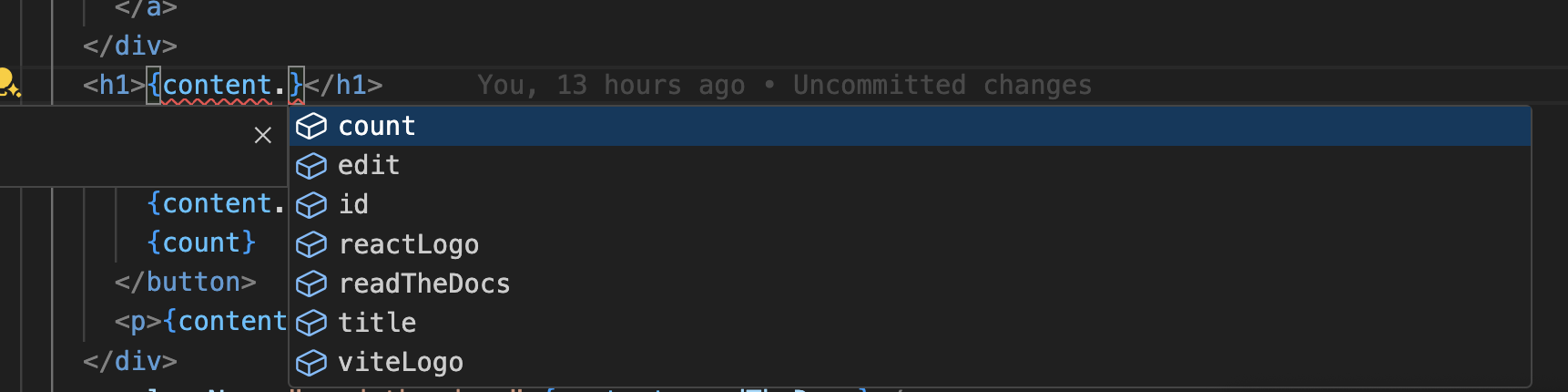
- Autocompletion for translation keys.
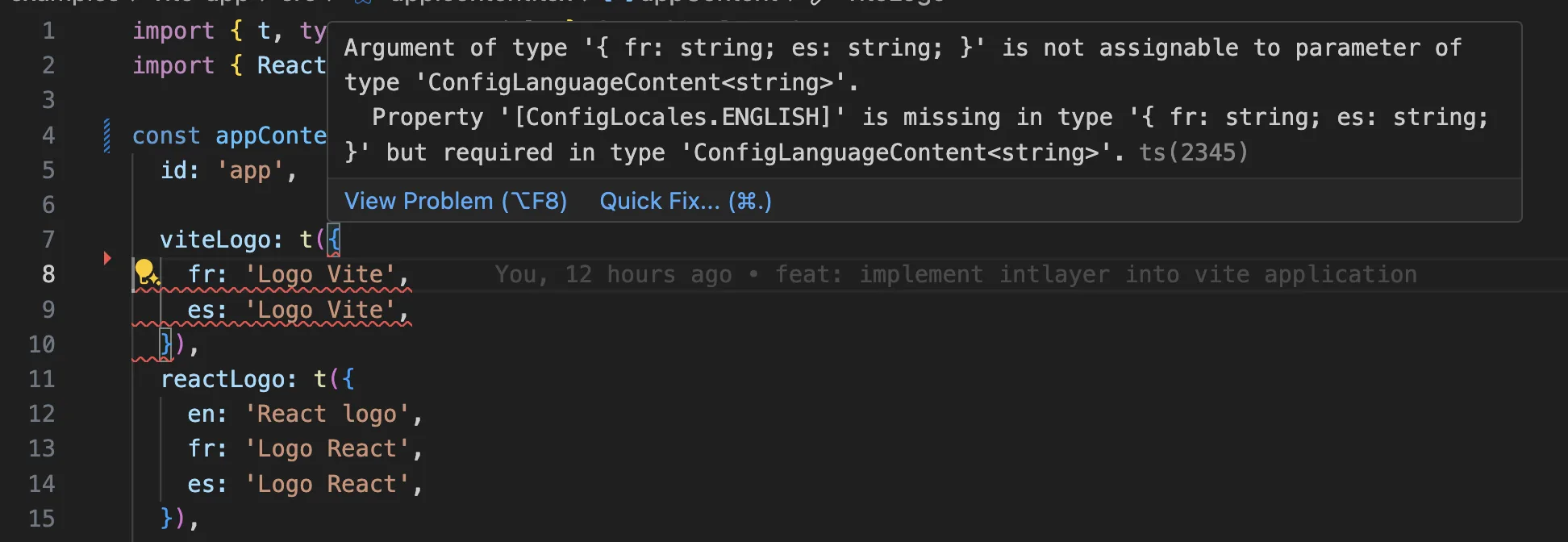
- Real-time error detection for missing translations.
- Inline previews of translated content.
- Quick actions to easily create and update translations.
For more details on how to use the extension, refer to the Intlayer VS Code Extension documentation.
Go Further
To go further, you can implement the visual editor or externalize your content using the CMS.
Frequently Asked Questions
Next.js has no built-in message layer since the i18n field of next.config.js stopped applying to the App Router, so the localization layer is always a library choice:
next-intl,i18next/next-i18nextandreact-intl: the historical options, based on JSON or ICU message catalogs loaded per namespace.Lingui: extraction driven, with ICU messages compiled at build time.Intlayer: the most advanced solution. Content declared anywhere in your codebase (next to each component or centralized), compiled at build time into per component dictionaries, fully typed, with AI translation, a visual editor and a CMS included.
The practical difference is what reaches the browser. Namespace based libraries ship whole JSON catalogs to a page, while Intlayer ships only the content the rendered components use, which cuts bundle and page size by up to 50%. See why Intlayer and the Next.js i18n benchmark.
Much less than a namespace based setup, because a page never downloads a catalog it does not render. Server Components resolve their content on the server, and the build time compiler replaces useIntlayer calls with the exact dictionary entries a component uses, so unused keys and unused languages are dropped, and dynamic dictionaries split the rest per locale. Measured against the usual alternatives, Intlayer reduces bundle and page size by up to 50%. See bundle optimization and the benchmark.
Yes, and there are two paths. You can migrate the content progressively with the next-intl migration guide or the i18next migration guide. Or you can keep your current API entirely: the compat adapters expose the exact same API as next-intl, react-i18next and react-intl, but served by Intlayer dictionaries, so imports change and component code does not.
Yes. The sync JSON plugin keeps your /messages/{locale}/{namespace}.json files as the source of truth and generates Intlayer dictionaries from them, in both directions. A sync PO plugin does the same for gettext catalogs, and per locale files let you split content by language instead of grouping locales in one file.
No. Run npx intlayer extract and Intlayer reads your components, pulls the user facing strings out and writes a .content file next to each one, so you review a diff instead of copying strings into a catalog one at a time. Step 14 of this guide walks through it.
For a fully automated pipeline, the Intlayer Compiler does the same at build time: it scans your JSX, TSX, Vue and Svelte source on every change, generates the dictionaries and keeps them in sync through hot module replacement, so there are no keys to maintain by hand at all.
Two limits are worth knowing before you turn the compiler on. It works by static analysis, so strings that only exist at runtime, such as API error codes or CMS fields, stay out of reach. And it has to tell user facing text apart from application logic like className="active" or a status code, which needs a few annotations in a large codebase. The extract command avoids both by keeping you in the loop.
Five pieces, all optional:
- VS Code extension: jump from a
useIntlayerkey to the content file that declares it, extract content from a component, and run build, fill, test, push and pull from the command palette or a dedicated Intlayer tab. - LSP server: the same awareness in any editor that speaks LSP, with go to definition, find all references, hover previews of a translated value, autocompletion of keys and fields, and a warning when a key is not declared anywhere. It also resolves
i18next,react-i18next,next-intlanduse-intlcalls, which helps while you migrate. - MCP server: exposes the Intlayer documentation and CLI to Cursor, VS Code, Claude Desktop, Claude Code and ChatGPT, so an assistant answers from current docs instead of guessing, and can run commands such as
intlayer fillitself. - Agent skills: focused skills such as
intlayer-config,intlayer-cliandintlayer-content, plus one per framework, that teach an agent your routing setup and the content node types. - ESLint plugin:
no-raw-textflags hardcoded strings, with further rules for static dictionary keys and unused content.