
Ask your question and get a summary of the document by referencing this page and the AI provider of your choice
Version History
- "Use the useIntlayer / useLocale hooks of astro-intlayer in the Astro page"v9.5.519/09/2026
- "Update Solid useIntlayer API usage to direct property access"v8.9.004/05/2026
- "Initial documentation for Astro + Svelte"v8.7.724/04/2026
The content of this page was translated using an AI.
See the last version of the original content in EnglishIf you have an idea for improving this documentation, please feel free to contribute by submitting a pull request on GitHub.
GitHub link to the documentationCopy doc Markdown to clipboard
Translate your Astro + Svelte site with Intlayer
Table of Contents
Why Intlayer over alternatives?
Compared to main solutions like astro-i18n or i18next, Intlayer is a solution that comes with integrated optimizations such as:
Intlayer is optimized to work perfectly with Astro by offering multilingual routing, sitemap, and all the features needed for scaling internationalization (i18n).
Instead of loading massive JSON files into your pages, load only the necessary content. Intlayer helps reduce your bundle and page sizes by up to 50%.
Scoping your application's content facilitates maintenance for large-scale applications. You can duplicate or delete a single feature folder without the mental burden of reviewing your entire content codebase. Additionally, Intlayer is fully typed to ensure your content's accuracy.
Co-locating content reduces the context needed by Large Language Models (LLMs). Intlayer also comes with a suite of tools, such as a CLI to test for missing translations,LSP, MCP, and agent skills, to make the developer experience (DX) even smoother for AI agents.
Use automation to translate in your CI/CD pipeline using the LLM of your choice at the cost of your AI provider. Intlayer also offers a compiler to automate content extraction, as well as a web platform to help translate in the background.
Connecting massive JSON files to components can lead to performance and reactivity issues. Intlayer optimizes your content loading at build time.
More than just an i18n solution, Intlayer provides an self-hosted visual editor and a full CMS to help you manage your multilingual content in real-time, making collaboration with translators, copywriters, and other team members seamless. Content can be stored locally and/or remotely.
Step-by-Step Guide to Configure Intlayer in Astro + Svelte
Check out the application template on GitHub.
Install Dependencies
Install the necessary packages using your preferred package manager:
bashCopy codeCopy the code to the clipboard
the
--interactiveflag is optional. Useintlayer-cli initif you're an AI agent.This command will detect your environment and install the required packages. For example:
bashCopy codeCopy the code to the clipboard
intlayer The core package that provides i18n tools for configuration management, translations, content declaration, transpilation, and CLI commands.
astro-intlayer Includes the Astro integration plugin for integrating Intlayer with the Vite bundler, a middleware that resolves the locale of every request into
Astro.locals.intlayer, and theuseIntlayer/useDictionary/useLocalehooks. The same import path resolves to the server implementation in your.astrofrontmatter and to the client one (backed byvanilla-intlayer) in<script>blocks.svelte Core Svelte package.
svelte-intlayer Package to integrate Intlayer into Svelte applications. It provides
setupIntlayeras well as theuseIntlayeranduseLocalestores for internationalisation in Svelte.@astrojs/svelte Official Astro integration that allows the use of Svelte component islands.
Configure Your Project
Architecture
In this architecture, the
intlayer()integration registered inastro.config.tsbuilds your dictionaries and adds a middleware that resolves the locale of every request and exposes it onAstro.locals.intlayer. Pages live under asrc/pages/[...locale]/rest segment, so the default locale is served without prefix and every other locale gets its own dedicated URL..astrofiles read the content with theuseIntlayer/useLocalehooks ofastro-intlayerfor the server render, and the Svelte island (src/components/svelte/SvelteIsland.svelte) receives the server-detected locale as a prop and hands it tosvelte-intlayerfor the interactive part. Content declarations are placed alongside your components insrc/.bashCopy codeCopy the code to the clipboard
Configuration
Create a configuration file to define your application's languages:
intlayer.config.tsCopy codeCopy the code to the clipboard
Through this configuration file, you can configure localised URLs, middleware redirects, cookie names, location and extensions of content declarations, disable Intlayer logs in the console, and more. For a full list of available parameters, refer to the configuration documentation.
Integrate Intlayer into Your Astro Configuration
Add the
intlayerplugin and Svelte integration to your Astro configuration.astro.config.tsCopy codeCopy the code to the clipboard
The
intlayer()integration plugin is used to integrate Intlayer with Astro. It ensures the generation of the content declaration files and monitors them in development mode. It defines Intlayer environment variables within the Astro application and provides aliases to optimise performance.The
svelte()integration allows for using Svelte component islands viaclient:only="svelte".Declare Your Content
Create and manage your content declarations to store translations:
src/app.content.tsCopy codeCopy the code to the clipboard
Content declarations can be defined anywhere in your application, as long as they are included in the
contentDir(by default./src) and match the content declaration file extension (by default.content.{json,ts,tsx,js,jsx,mjs,cjs,md,mdx,yaml,yml}).For more information, refer to the content declaration documentation.
Using Content in Astro
Consume your dictionaries in
.astrofiles with the hooks exported byastro-intlayer. They share the signatures ofreact-intlayer:useIntlayer("key")returns the content of a dictionary anduseLocale()the current locale, with no argument to pass around.The locale comes from the
astro-intlayermiddleware, which the integration registers for you ahead of your ownsrc/middleware.ts. It resolves it for every request, from the URL prefix, then the locale persisted by the client (cookie or header), thenAccept-Language, and stores it inAstro.locals.intlayer. Prerendered pages only use the URL, since they are rendered once for every visitor.You should also add SEO metadata (such as hreflang and canonical links) to every page and introduce a Svelte island for interactive client-side content.
src/pages/[...locale]/index.astroCopy codeCopy the code to the clipboard
If you want to use your content in a
stringattribute, such asalt,title,href,aria-label, etc., you can use the value of the function, like:tsxCopy codeCopy the code to the clipboard
Astro.locals.intlayeralso exposeslocale,defaultLocaleandavailableLocalesto your own middleware and endpoints. Pass a locale or a selector as second argument (useIntlayer("app", "fr"),useIntlayer("faq", { item: 2 })) to override the request locale for one call.Note on routing setup: The directory structure you use depends on the
middleware.routingsetting inintlayer.config.ts:prefix-no-default(default): keeps the default language at the root (no prefix) and prefixes others. Use[...locale]to catch all cases.prefix-all: all URLs get a language prefix. You can use standard[locale]if you don't need to handle the root separately.search-paramorno-prefix: no language directories are needed. The language is handled via query parameters or cookies.
Create a Svelte Island Component
Create an island component that wraps your Svelte application. You must call
setupIntlayerwith the server-detected locale before accessing the stores.src/components/svelte/SvelteIsland.svelteCopy codeCopy the code to the clipboard
The
localeprop is passed from the Astro page (server detection) and used to initialisesetupIntlayer, setting the initial language for all stores in the component.Add a Language Switcher
The language switching functionality is integrated directly within the Svelte island (see step 6 above). It uses the
useLocalestore fromsvelte-intlayerand navigates to the localised URL when a user selects a new language:src/components/svelte/SvelteIsland.svelteCopy codeCopy the code to the clipboard
Note on persistence: Using
onLocaleChangeto redirect viawindow.location.hrefensures the new linguistic URL is visited, allowing the Intlayer middleware to set the language cookie and remember the user's preference in future visits.Sitemap and Robots.txt
Intlayer offers utilities to dynamically create your localised sitemap and robots.txt files.
Sitemap
Intlayer comes with a built-in sitemap generator to help you create a sitemap for your application easily. It handles localized routes and adds the necessary metadata for search engines.
The Intlayer generated sitemap supports the
xhtml:linknamespace (Hreflang XML Extensions). Unlike the default sitemap generators that only list raw URLs, Intlayer automatically creates the required bidirectional links between all language versions of a page (e.g.,/about,/about?lang=fr, and/about?lang=es). This ensures search engines correctly index and serve the right language version to the right audience.Create
src/pages/sitemap.xml.tsto generate a sitemap including all your localised routes.src/pages/sitemap.xml.tsCopy codeCopy the code to the clipboard
Robots.txt
Create
src/pages/robots.txt.tsto control search engine crawling.src/pages/robots.txt.tsCopy codeCopy the code to the clipboard
Extract the content of your components
OptionalIf you have an existing codebase, transforming thousands of files can be time-consuming.
To ease this process, Intlayer propose a compiler / extractor to transform your components and extract the content.
To set it up, you can add a
compilersection in yourintlayer.config.tsfile:intlayer.config.tsCopy codeCopy the code to the clipboard
import { type IntlayerConfig } from "intlayer"; const config: IntlayerConfig = { // ... Rest of your config compiler: { /** * Indicates if the compiler should be enabled. */ enabled: true, /** * Defines the output files path */ output: ({ fileName, extension }) => `./${fileName}${extension}`, /** * Indicates if the components should be saved after being transformed. * * - If `true`, the compiler will rewrite the component file in the disk. So the transformation will be permanent, and the compiler will skip the transformation for the next process. That way, the compiler can transform the app, and then it can be removed. * * - If `false`, the compiler will inject the `useIntlayer()` function call into the code in the build output only, and keep the base codebase intact. The transformation will be done only in memory. */ saveComponents: false, /** * Dictionary key prefix */ dictionaryKeyPrefix: "", }, }; export default config;Run the extractor to transform your components and extract the content
bashCopy codeCopy the code to the clipboard
Build your application to transform your components and extract the content
bashCopy codeCopy the code to the clipboard
TypeScript Configuration
Intlayer uses module augmentation to leverage TypeScript, making your codebase more robust.
Ensure your TypeScript configuration includes the autogenerated types.
Copy the code to the clipboard
Git Configuration
It is recommended to ignore the files generated by Intlayer. This avoids committing them to your Git repository.
To do this, add the following instructions to your .gitignore file:
Copy the code to the clipboard
VS Code Extension
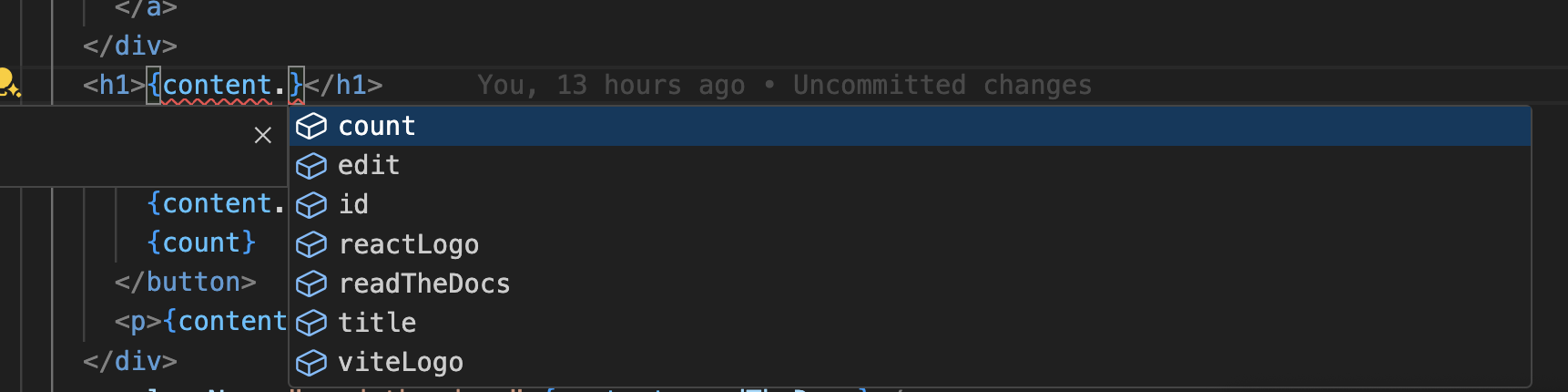
To improve your development experience with Intlayer, you can install the official Intlayer VS Code extension.
This extension provides:
- Autocompletion for translation keys.
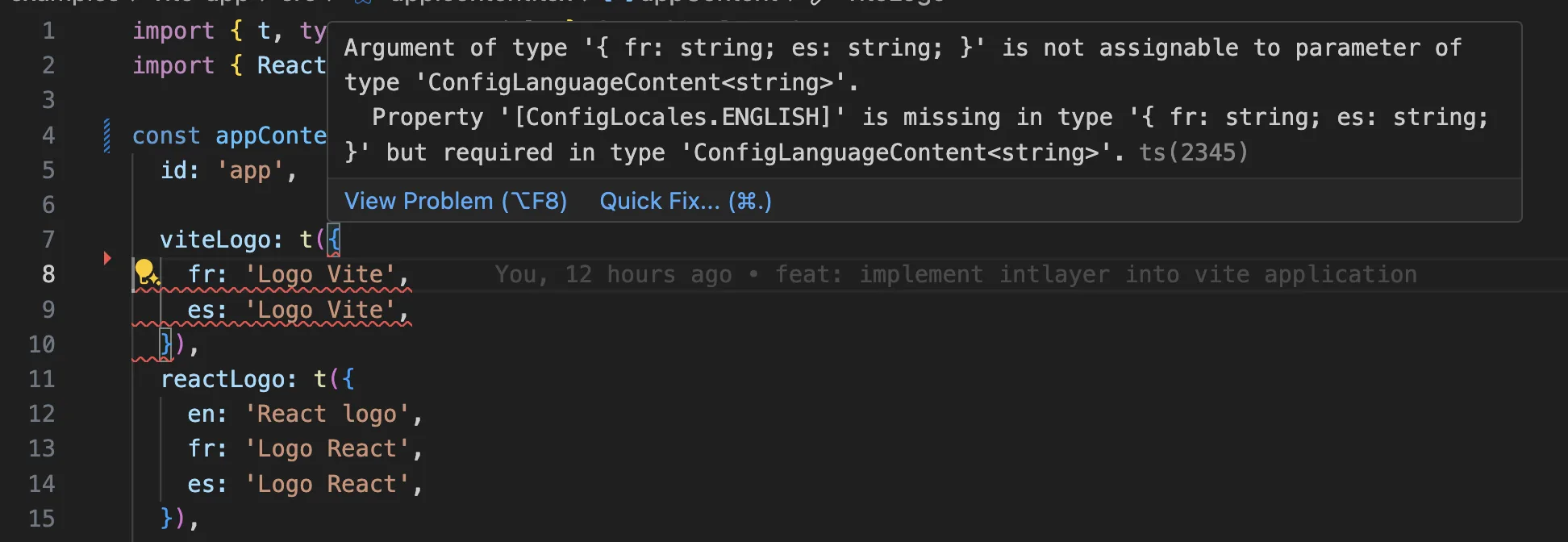
- Real-time error detection for missing translations.
- Inline preview of translated content.
- Quick actions for easily creating and updating translations.
For more information on using the extension, refer to the VS Code Extension documentation.
Deepen Your Knowledge
If you want to learn more, you can also implement the Visual Editor or use the CMS to externalise your content.
Frequently Asked Questions
Astro's built-in i18n option handles locale prefixes and redirects but not the content itself, so you still need a message layer, and an island adds a second problem: the island runs Svelte, not Astro.
- Astro
i18nplus hand written dictionaries, withsvelte-i18ninside the island: two content sources to keep in sync, and no shared typing between them. Intlayer: one content layer for both.astro-intlayercovers the.astropages andsvelte-intlayercovers the Svelte islands, reading the same declarations.
Declaring a label once and using it in both a static page and an interactive island is the reason to pick a single content layer here. See why Intlayer.
Much less than a namespace based setup, because a page never downloads a catalogue it does not render. Astro pages are rendered at build time, so they ship translated HTML and no dictionary at all; only the islands receive one. The build time compiler resolves the content calls to the exact entries a component uses, and dynamic dictionaries split the rest per locale. Measured against the usual alternatives, Intlayer reduces bundle and page size by up to 50%. See bundle optimization and the benchmark.
Largely. Follow the Svelte I18n migration guide to move the content over. You can also migrate gradually: the sync JSON plugin keeps your existing JSON catalogues as the source of truth and generates Intlayer dictionaries from them, so both layers stay in sync while you move components across one at a time.
Yes. The sync JSON plugin keeps your /messages/{locale}/{namespace}.json files as the source of truth and generates Intlayer dictionaries from them, in both directions. A sync PO plugin does the same for gettext catalogues, and per locale files let you split content by language instead of grouping locales in one file.
No. Run npx intlayer extract and Intlayer reads your components, pulls the user facing strings out and writes a .content file next to each one, so you review a diff instead of copying strings into a catalogue one at a time. Step 15 of this guide walks through it.
For a fully automated pipeline, the Intlayer Compiler does the same at build time: it scans your JSX, TSX, Vue and Svelte source on every change, generates the dictionaries and keeps them in sync through hot module replacement, so there are no keys to maintain by hand at all.
Two limits are worth knowing before you turn the compiler on. It works by static analysis, so strings that only exist at runtime, such as API error codes or CMS fields, stay out of reach. And it has to tell user facing text apart from application logic like className="active" or a status code, which needs a few annotations in a large codebase. The extract command avoids both by keeping you in the loop.
Five pieces, all optional:
- VS Code extension: jump from a
useIntlayerkey to the content file that declares it, extract content from a component, and run build, fill, test, push and pull from the command palette or a dedicated Intlayer tab. - LSP server: the same awareness in any editor that speaks LSP, with go to definition, find all references, hover previews of a translated value, autocompletion of keys and fields, and a warning when a key is not declared anywhere. It also resolves
i18next,react-i18next,next-intlanduse-intlcalls, which helps while you migrate. - MCP server: exposes the Intlayer documentation and CLI to Cursor, VS Code, Claude Desktop, Claude Code and ChatGPT, so an assistant answers from current docs instead of guessing, and can run commands such as
intlayer fillitself. - Agent skills: focused skills such as
intlayer-config,intlayer-cliandintlayer-content, plus one per framework, that teach an agent your routing setup and the content node types. - ESLint plugin:
no-raw-textflags hardcoded strings, with further rules for static dictionary keys and unused content.